Replacing an HWT-IVS1800-D08/D16/E08/E16/LLM Subrack
Prerequisites
- Required tools such as an electrostatic discharge (ESD) bag and a PH2 screwdriver, are available.
- Replacement devices are available.
- The disk data has been backed up. For details, see Backing Up Data.
Important Notes

Data can be restored only for devices of the same model.
The device model corresponding to the subrack after subrack replacement must be the same as that before the replacement. Otherwise, services will fail to be restored.
You can view the device model on the electronic label attached to the chassis.
Procedure
- Wear insulation gloves and connect the ground terminal of the ESD wrist strap into the ESD jack in the cabinet or on the workbench.
- Perform the following operations on the original subrack.
- Turn off and unplug the original subrack to ensure that the subrack is powered off.
Removing a hard disk when the server is powered on may cause data loss on the hard disk.
- Remove hard disks. Remember the slot ID of each hard disk. You need to install the hard disk to the same slot in the new subrack.
For details about how to remove a hard disk, see HWT-IVS1800-D08.
- Turn off and unplug the original subrack to ensure that the subrack is powered off.
- Perform the following operations on the new subrack.
- Install the removed hard disks into the same slots in the new subrack.
If you install hard disks into wrong slots, disk data will not be restored.
For example, the hard disk in slot 1 in the original subrack must be inserted into slot 1 in the new subrack.
- Connect the power cable of the new subrack and turn on the power switch on the rear panel to power on the new subrack.

Do not connect the network cable here.
- Observe the hard disk status indicator to confirm that the hard disk has been correctly installed in the new cabinet.
- Steady red: Disks have been mounted to the system, but at least one disk fails.
- Blinking yellow (steady red and blinking green): Disks have been mounted to the system. At least one disk fails, and data is being written to a disk.
- Blinking green: Disks have been mounted to the system, and data is being written to a disk.
- Steady green: Disks are inserted but not mounted to the system.
- Off: No disk is inserted.
- Start the LDU and reset the passwords of the service system and operating system accounts.
- The password is applied to the admin user of the service system, and the admin and root users of the operating system.
- For security purposes, you are advised to use a password with high complexity. For details about the password complexity requirements, see Suggestions on Password Maintenance.
Figure 6-16 Setting the password of the admin user of the service system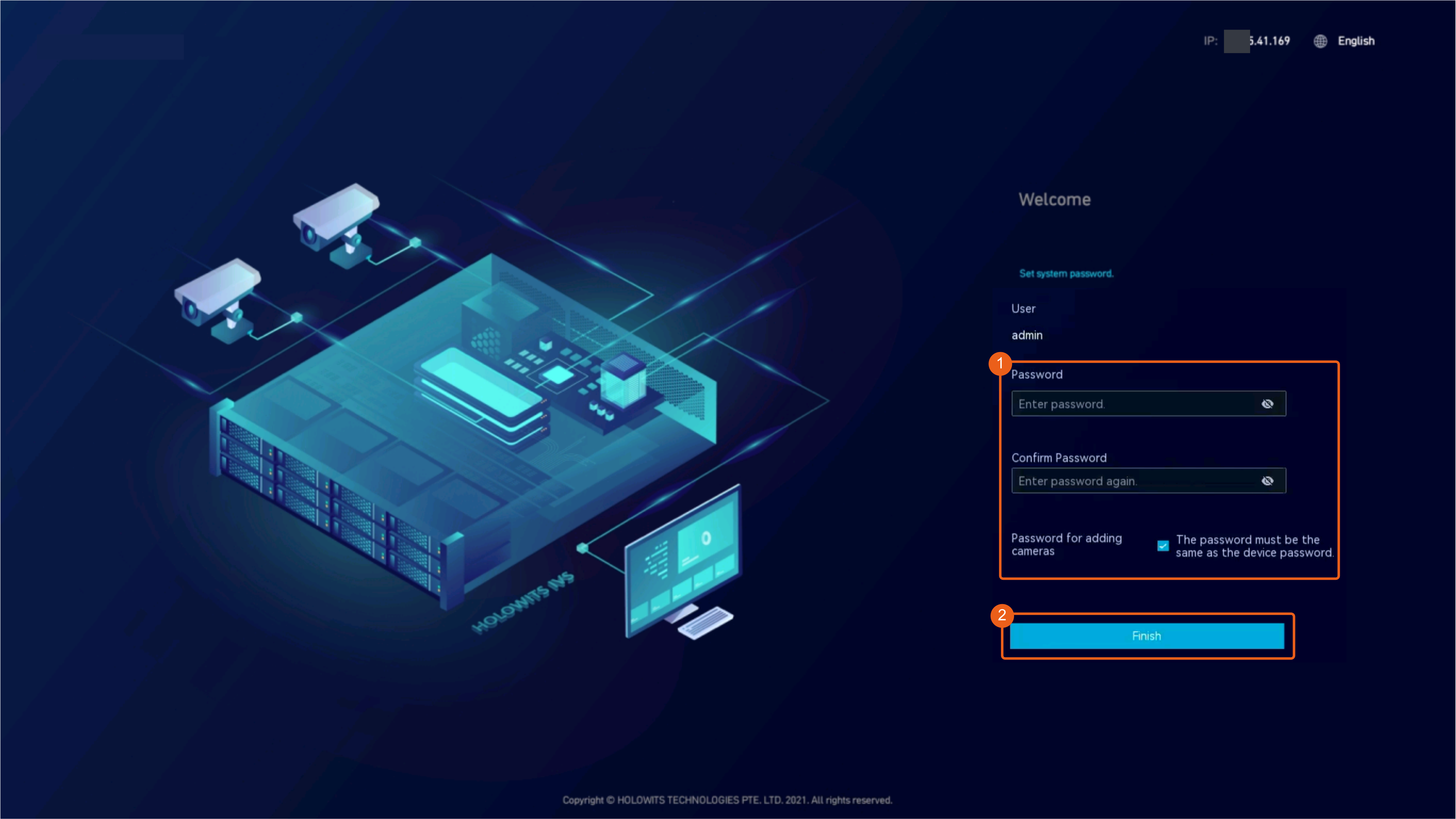 Table 6-7 describes the parameters of the admin user of the service system, and the admin and root users of the operating system.Table 6-7 Parameter description
Parameter
Application Scenario
Application Description
Service system
User Name: admin
- The admin user is a service system user and can log in to the OMU portal, LDU, and iClient S100.
The admin user is a predefined user with full permissions on the system. The permissions and name of the user are specified by default and unconfigurable.
Password/Confirm Password
Password for adding cameras
This password is used to verify cameras to be connected.
This password is required for camera connection verification.
For details about how to change the password for adding a camera, see How Do I Change the Password for Connecting a Camera?.
Operating system
User Name: admin
The admin user, an operating system user, can remotely and locally log in to the operating system and perform operations on some files, directories, or processes.
The password of the admin user needs to be changed upon the first login.
For details about how to change the password, see How Do I Log In to the Operating System Through a Network Port?.
Password/Confirm Password
User Name: root
The root user has all the permissions on the operating system and can perform operations on any file, directory, and process.
You must log in the operating system as the admin user first and then switch to the root user.
Password/Confirm Password
After the subrack is replaced and data is restored, the password for logging in to the service system is the same as that before the replacement, but the passwords for logging in to the operating system are changed to the new ones.
- After logging in to the LDU, restore data by referring to Restoring Original Disk Data.
- Connect the network cable to the network port of the device and ensure that the device is connected to the network properly.
- Check the disk status.
- Log in to the OMU portal of the new subrack as the admin user.
- Choose Storage > Disks.
- Check whether the RAID group status and physical status are normal.
- Install the removed hard disks into the same slots in the new subrack.